

Your Android phone can run faster and more reliably than ever before. While most of us just accept the limitations of an older phone, or even put up with the fact that even newer models can feel laggy at times, there are a few ways to revive just about any model.
One key reason a phone can feel sluggish is that the temporary files and settings can clog the operating system and cause slowdowns. The tips below describe how to address that problem, plus a few more to give you a speed boost. Combined, they delivered a speed boost of up to around 20% faster in my own tests.
I tested all of the tips on a Google Pixel 10 Pro Fold and noticed at least a 20% speed improvement, especially when it came to browser and app performance. For example, both Adobe Lightroom and Photoshop, my main apps for photo management, loaded faster and worked better.
Your experience will depend on the age of your phone, but these tips are designed to make a noticeable improvement for many common functions, regardless of the Android phone you own.
1. Update the OS and all commonly used apps
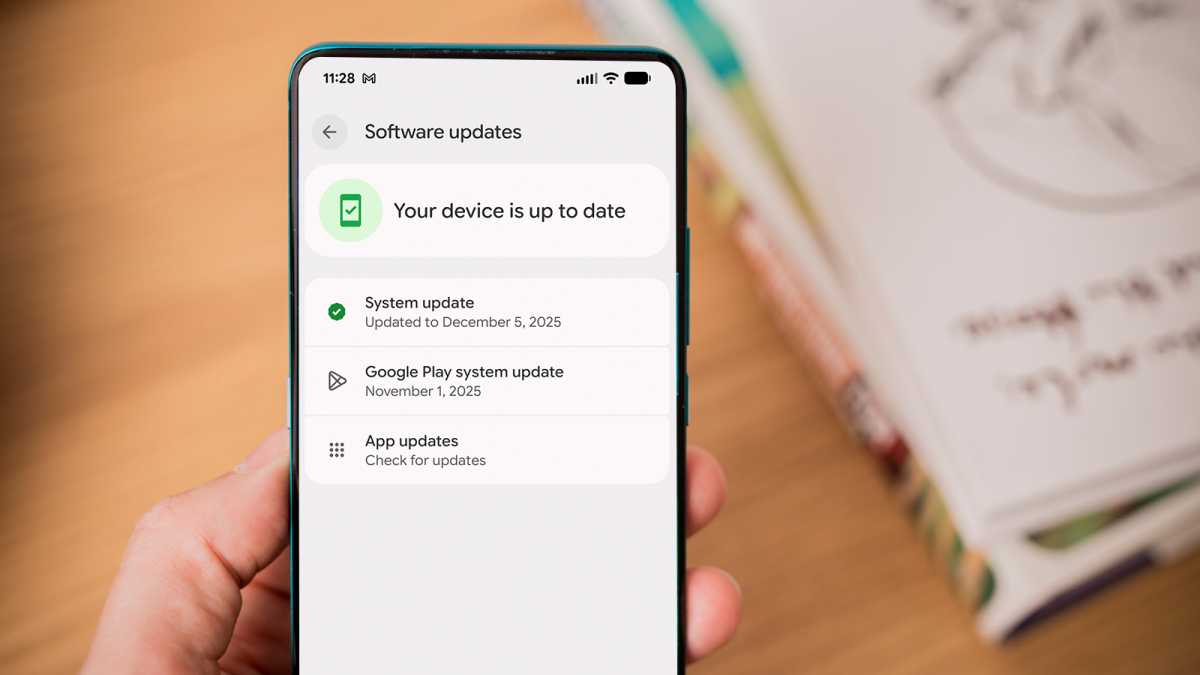
A great place to start for anyone who has noticed their Android phone seems sluggish or even crashes and pauses on occasion is to update the operating system and any of your frequently used apps.
The reason this works and can help you achieve that 20% faster running has to do with how an OS and your apps function. Developers frequently update apps for incompatibilities, and Google also updates the Android operating system itself to address issues. What might seem like a slowdown could be an incompatibility, and these updates tend to resolve the issue.
How to update Android and apps
For the Android operating system, under Settings, in the search box, type “system” and select the System Update option. Check for updates and install the latest update.
John Brandon / Foundry
For app updates, go to the Google Play Store and select your profile. Select Manage Apps & Devices, then select Update All to update all of the installed apps on your device.
2. Restart your phone regularly
Most of us keep plugging away on our phones for weeks on end, charging regularly but not necessarily rebooting the phone that often. If you are using an older Android model or tend to run apps like Adobe Photoshop, and find they run too slowly, that’s a mistake.
A good tip for seeing that 20% speed boost is to restart your phone regularly. This frees up system resources and clears memory, especially from any apps running in the background. In my tests, that Photoshop app in particular ran faster on a Pixel 10 Pro Fold after a system reboot.
How to restart your Android phone
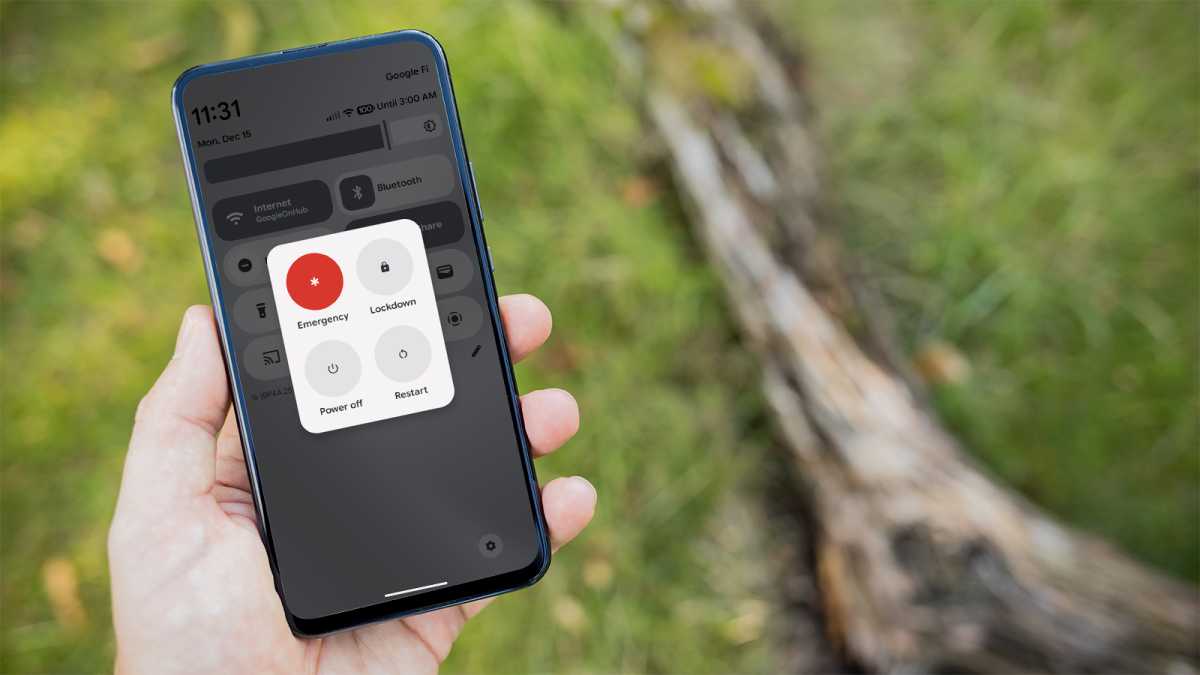
The fastest way to restart your phone is to press the Power and Volume Up buttons at the same time, then tap Restart or Reboot from the options that appear. Alternatively, most Android phones have a Power button that’s accessible from the quick settings panel when you swipe down from the top of the page, and the same menu will be displayed.
John Brandon / Foundry
3. Free up storage
Like a computer, your Android phone uses local storage to manage memory. Over time, you might install apps, take photos, and record so many videos that you use up most of that space. Expanding how much cloud storage you have available won’t help with local storage issues. Instead, you have to delete local files or remove space-hogging apps.
This is more likely to be an issue on older Android phones that have used up all of the local storage over time.
How to free up storage
The fastest way to free up storage on an Android phone is to remove apps you don’t use. Press and hold any app icon you want to remove. Tap App Info and then select Uninstall. If you only select Remove, that just removes the app icon from the Home screen.
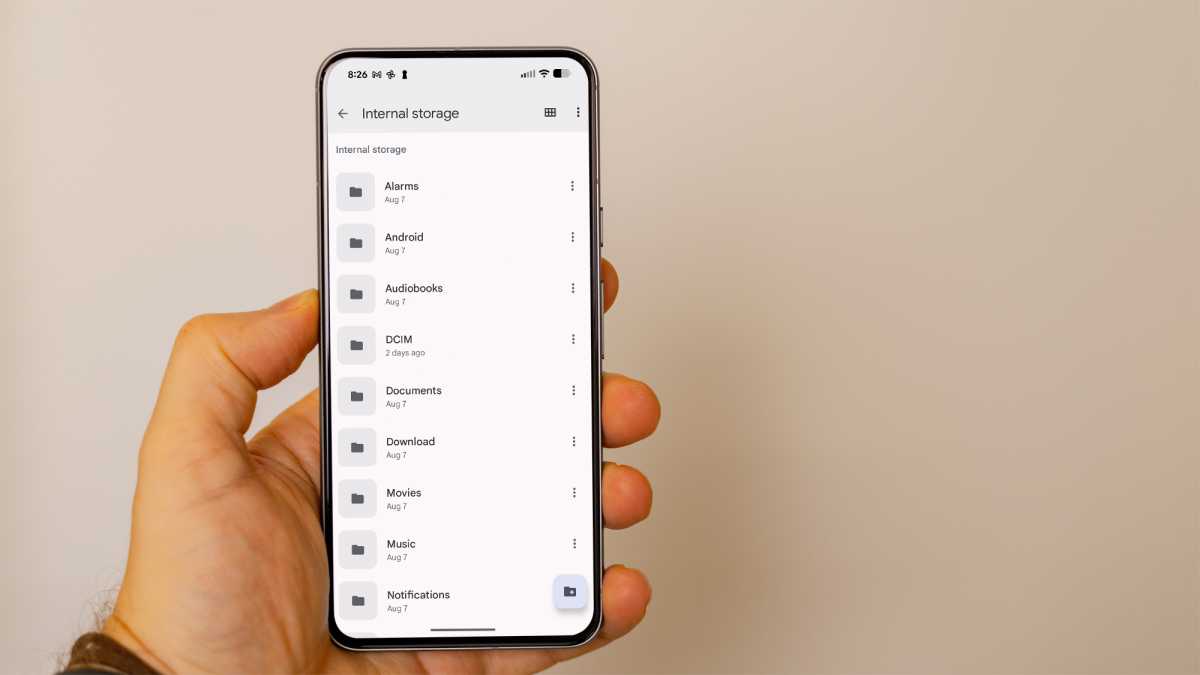
Other than that, the best way to free up space is to use the Files app and remove any documents, videos, or photos that are taking up a lot of the local storage.
John Brandon / Foundry
4. Clear app cache
You might not realise that apps have a cache, similar to a browser. A cache is where temporary files are stored.
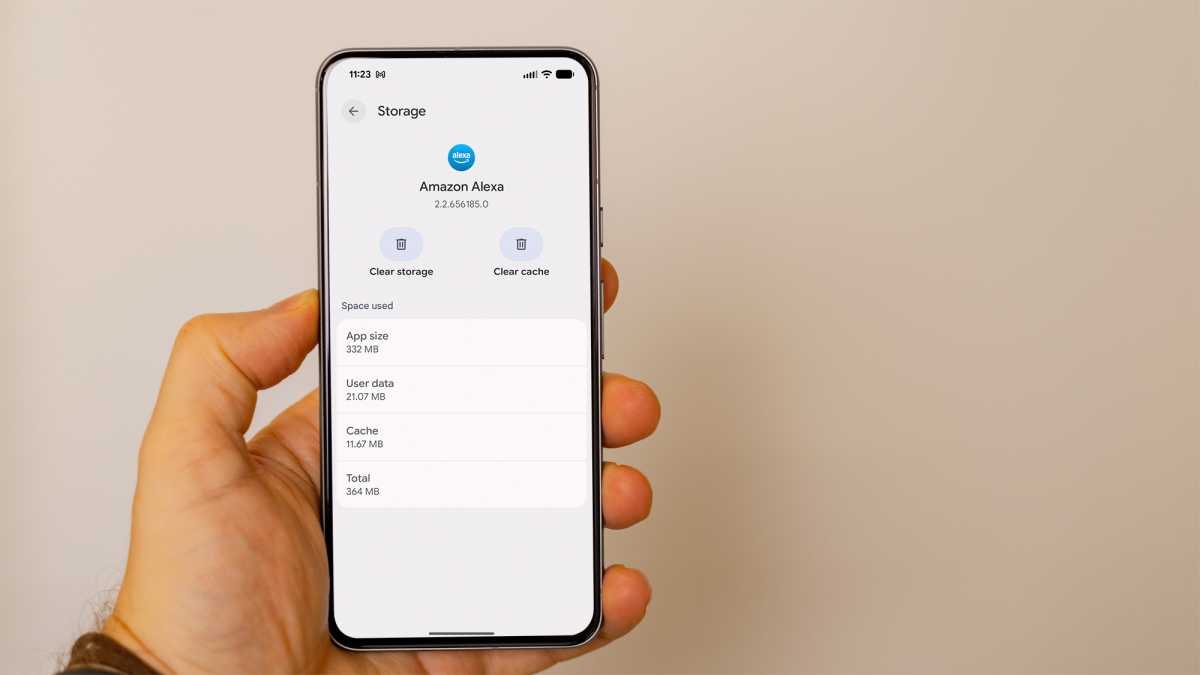
With an app like Amazon Alexa, for example, the cache might store the previous interactions you’ve had, including all recent settings. Clearing the cache not only frees up storage on your phone but can also resolve any incompatibilities and other glitches.
How to clear the cache for an app
Under Settings, look for Apps, then select All Apps. You will see a list of all the installed apps. Click on the one you want, then select Storage & Cache. Select the Clear Storage and Clear Cache options.
John Brandon / Foundry
5. Clear browser cache
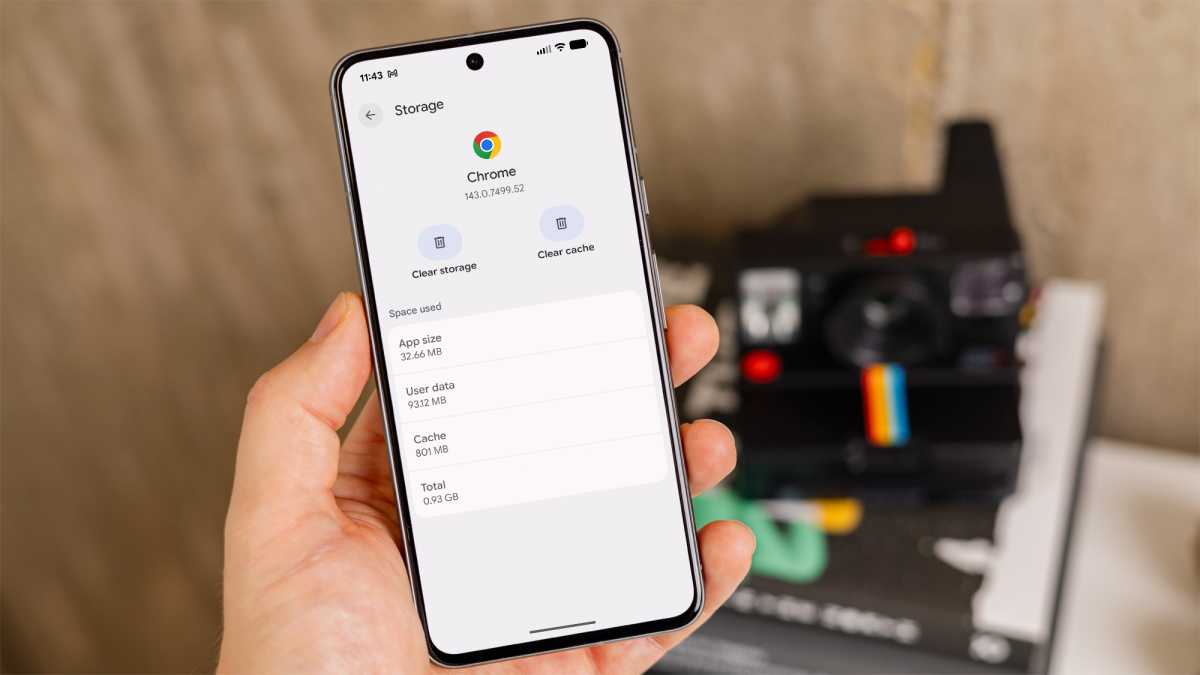
In addition to the app cache, it’s also smart to clear the cache for the Chrome browser on your Android phone as well. Especially on older models, a browser can feel sluggish because it has to maintain the history, cookies, and settings for every site you’ve visited. There may even be incompatibilities that are causing performance issues, so clearing the cache resolves those as well. When you clear the cache, you will then visit a site fresh and clean.
How to clear the browser cache
For Google Chrome, press and hold on the icon and go to App Info, look for the Storage & Cache option, then select Clear Cache.
John Brandon / Foundry
6. Reset your phone entirely
When it comes to older phones, one of the best ways to revive the device and realize a 20% speed increase is to reset the device entirely.
Note that this will remove all locally stored photos, videos, and files and also remove any apps you have installed. It’s like starting over. However, this reset tends to make an Android phone run faster because it means there are no temporary files or incompatibilities that could cause performance lag.
How to reset your phone
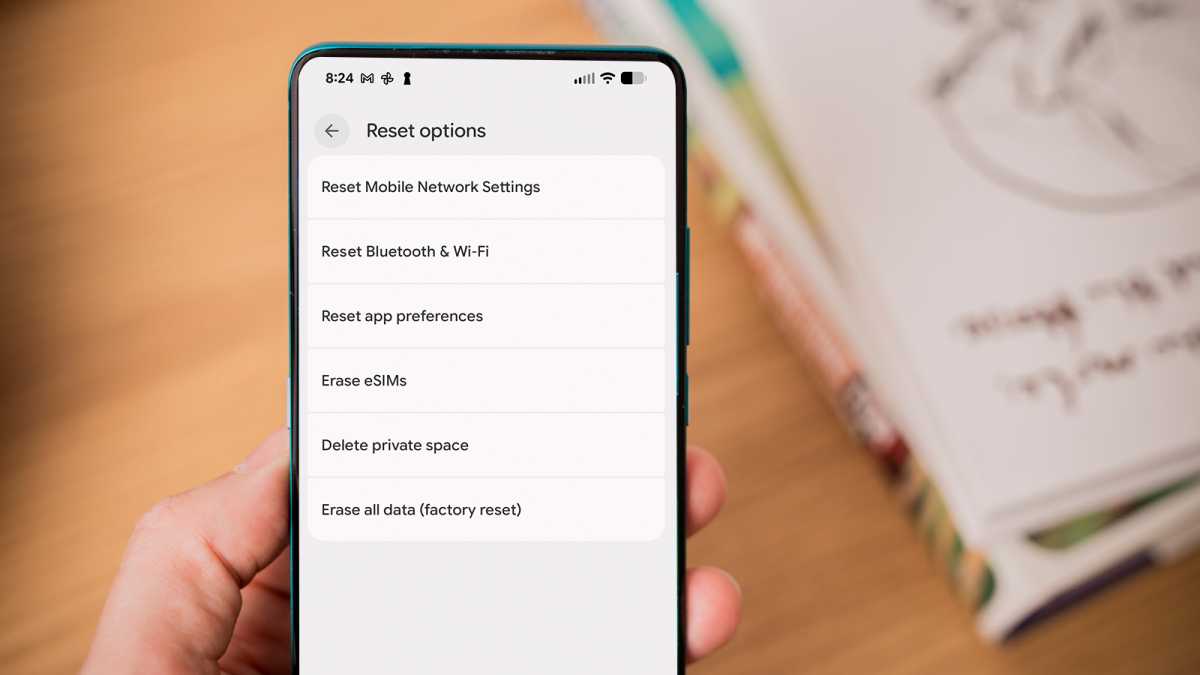
To reset a phone entirely, go to Settings and search for Reset. Scroll down and look for Reset options, then select Erase all data (factory reset) to reset the phone.
John Brandon / Foundry
7. Shut down power-intensive processes and apps
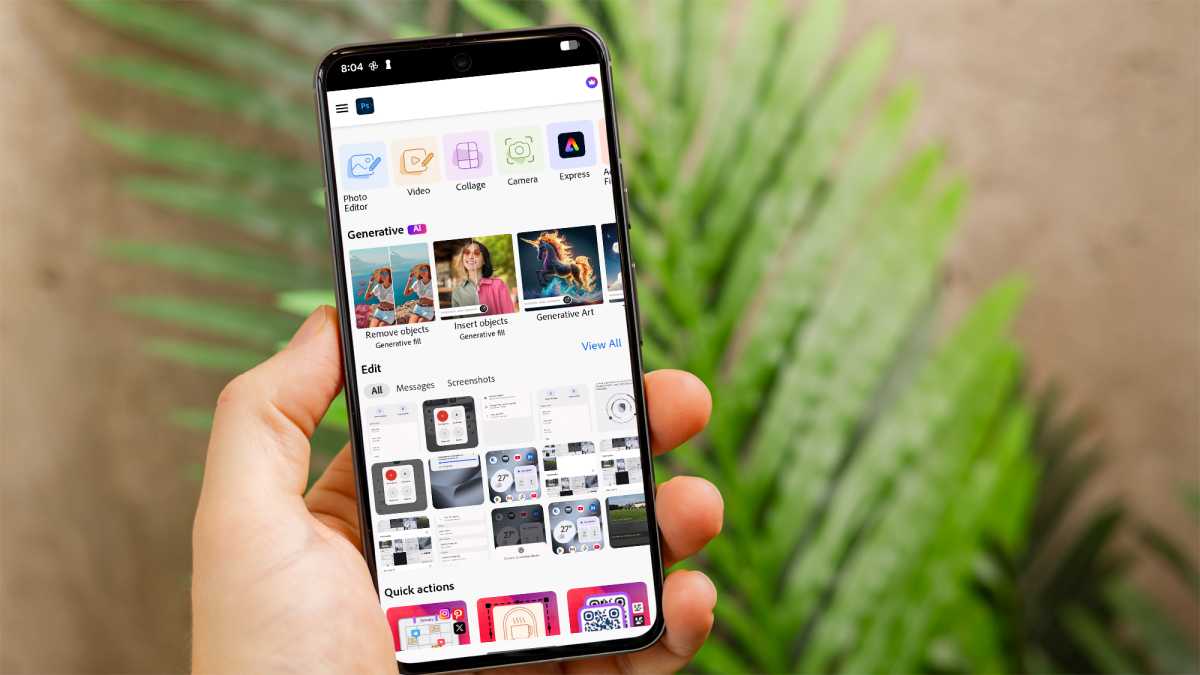
I’ve noticed over time that the two main photo management apps I use, Photoshop and Lightroom, can start to lag a bit. If all you want to do is check your email, it’s wise to “force stop” apps to clear up extra memory and system resources.
How to force quit an app
The fastest way to close any open app is to swipe up from the bottom of the screen, then flip the app screen up to close it. However, you can also press and hold on the app icon, select App Info, then select Force Stop. That way, you make sure the app closes completely.
John Brandon / Foundry
8. Use Facebook Lite and Google Maps Go
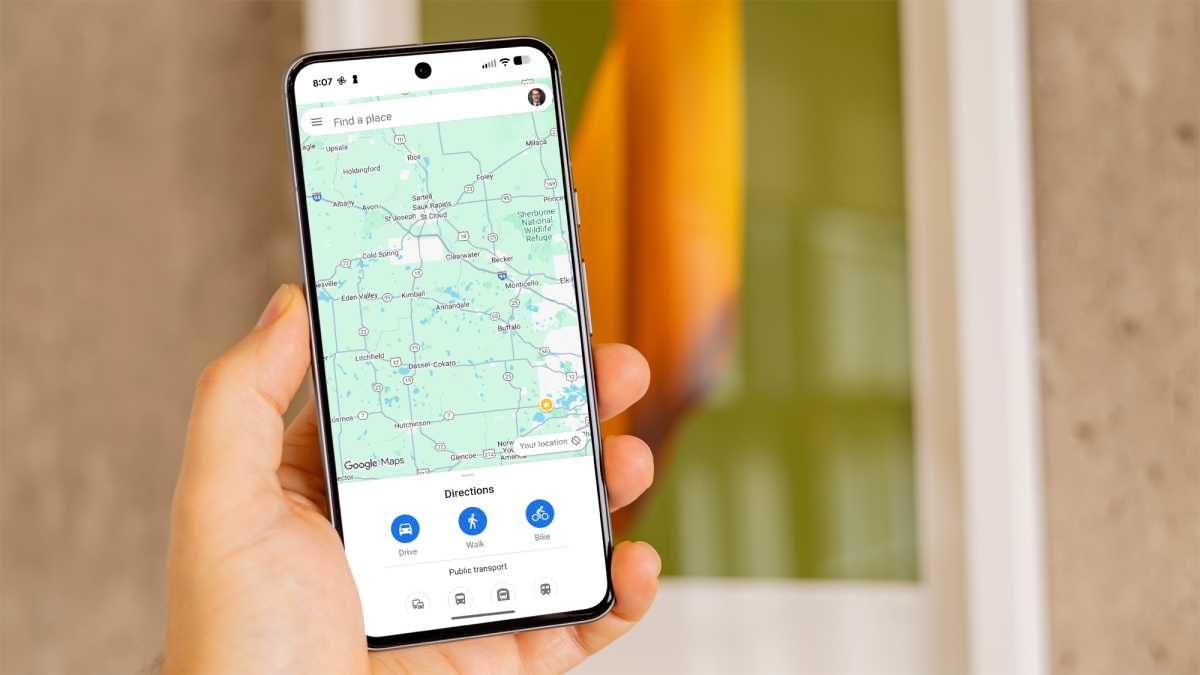
Short of speeding up the actual phone, one solution that is especially helpful on older Android models has to do with running light versions of apps that do not require as much processing speed. A couple of good options include Facebook Lite and Google Maps Go, both of which consume less memory and fewer system resources.
How to install Lite apps
The best way to find lite apps is to search for the word ”lite“ in the Google Play Store. You will see Facebook Lite plus a few other options. To install Google Maps Go, search for the app and install.
John Brandon / Foundry
9. Tweak animation settings
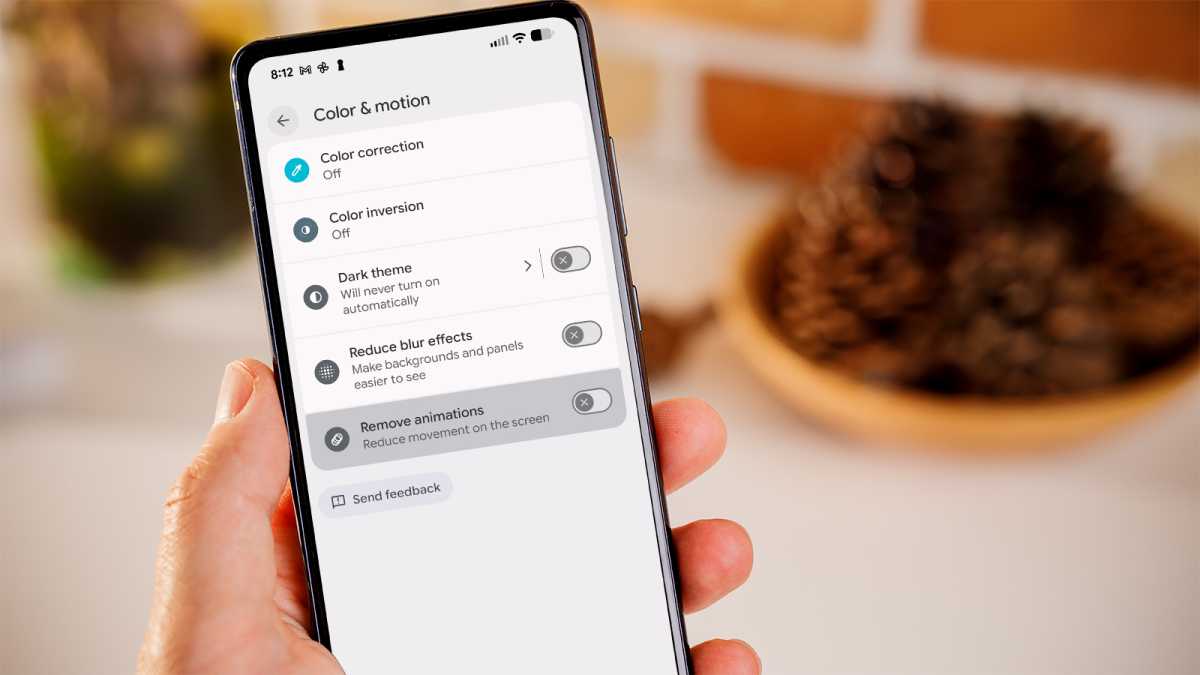
Animations on Android can also cause some minor slowdowns, but you don’t have to keep them enabled at all times. By turning off animations, you squeeze out a little more performance from your Android device (while accepting that some screen effects won’t run).
How to remove animations
Go to Settings and search for Color & motion to see animation settings. Turn off animations by enabling the Remove animations option.
John Brandon / Foundry
10. Put some apps into deep sleep mode
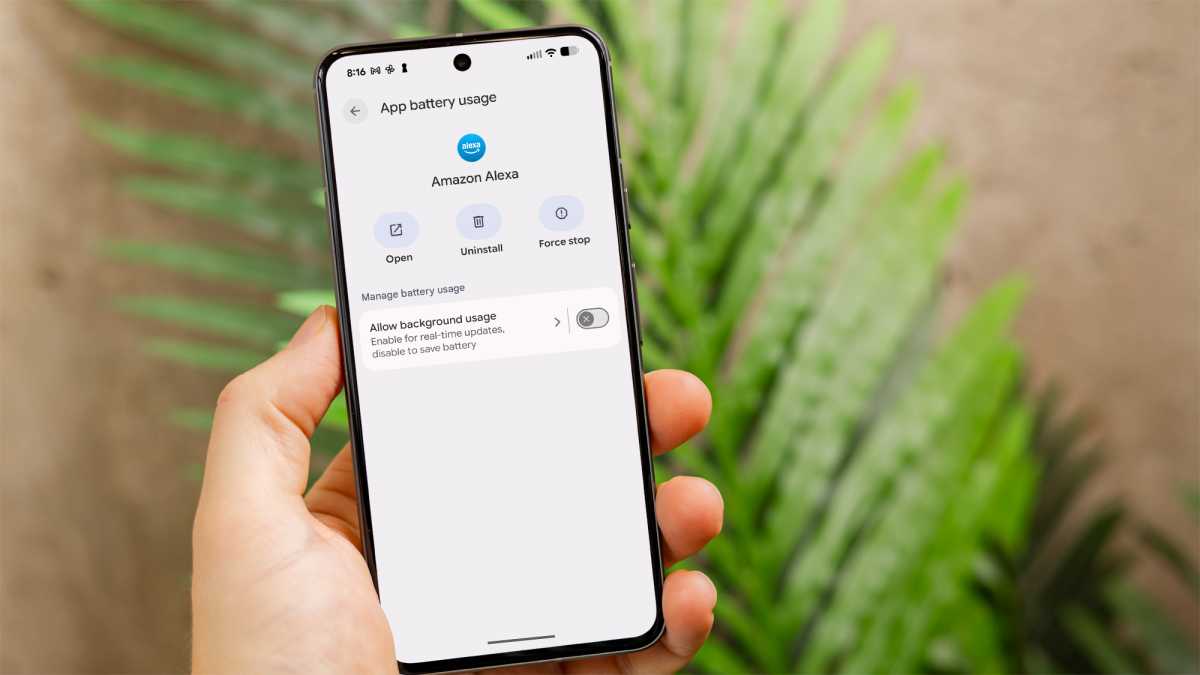
Deep sleep mode is one last tip to try when it comes to speeding up a sluggish Android phone. This option will cause an app to close when you are not using it. That frees up memory and system resources to make the device feel a bit speedier.
How to put apps in deep sleep mode
In Settings, search for App Battery Usage, then select the App Battery Usage option. Select each app you want to put into deep sleep mode by disabling the Allow background usage setting.
John Brandon / Foundry
So there you have it! 10 straightforward ways to speed up your Android phone.
If you decided to reset, here’s how to set up a new Android phone. You may also be interested in the 11 things our Mobile Editor does first after switching to a new handset.
Author: John Brandon, Contributor, Tech Advisor

John Brandon is a well-known journalist who has published over 15,000 articles on social media, technology, leadership, mentoring, and many other topics. Before starting his writing career in 2001, he worked as an Information Design Director at Best Buy Corporation.