

Since Google pulled its Chromecast TV dongle from shop shelves, the go-to wireless streaming solution has moved on to other options, including the brand’s new Google TV Streamer, Roku, and Miracast-enabled devices.
However, there are still times when casting your Android phone or Android tablet to a larger screen can be incredibly useful, whether for watching personal videos, gaming, or giving presentations.
Here’s how you can connect your Android device to a TV using both wired and wireless methods.
How to connect an Android phone or tablet to a TV
Two primary ways to connect your Android device to a TV are wired and wireless. Below, we explore both options in detail.
Connect Android to TV with HDMI
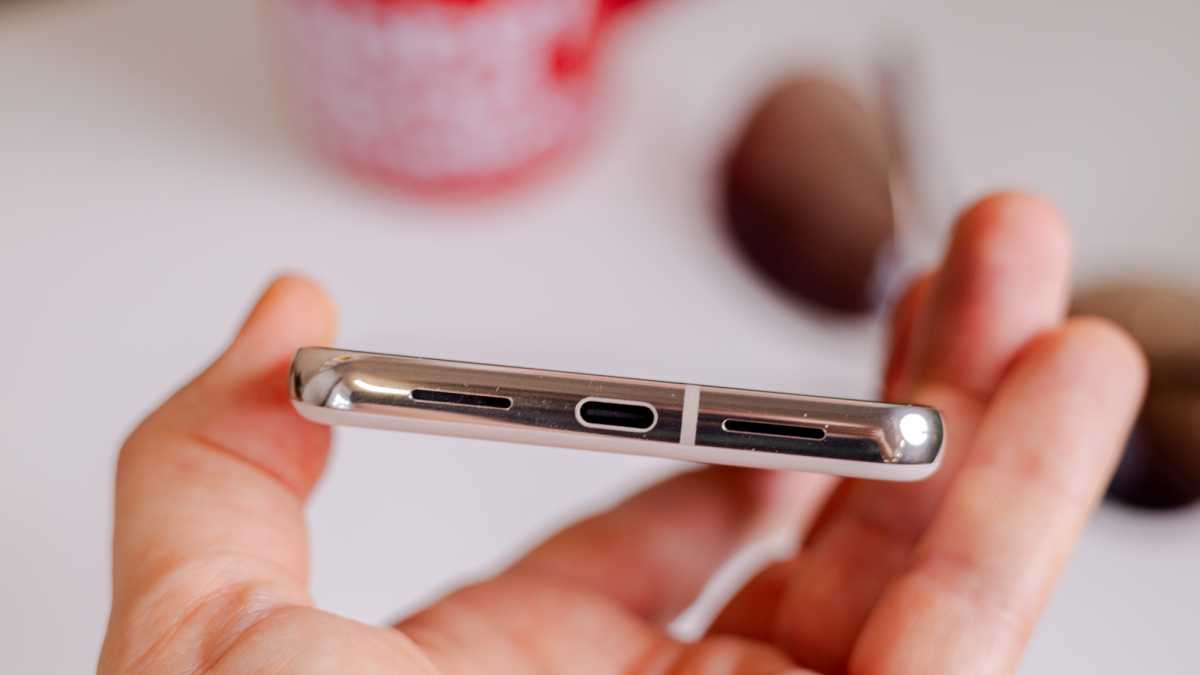
If you prefer a straightforward solution, using a USB-C-to-HDMI cable is the simplest way to connect your Android phone or tablet to a TV, provided your device supports streaming over HDMI.
Simply plug one end into an available HDMI port on the back of your TV and connect the USB-C end to your phone’s charging port. Then, change the ‘Source’ on your TV to view the HDMI input.
A standard HDMI cable won’t fit into your phone directly, but if your device has a USB-C port, you can purchase a USB-C-to-HDMI cable. We recommend this UNI cable from Amazon.
If your phone or tablet uses an older Micro-USB connection, you will need a Micro-USB-to-HDMI cable with MHL (Mobile High-Definition Link) technology, such as this StarTech lead. Not all Android devices support MHL, so check your device’s specifications before purchasing.
Dominik Tomaszewski / Foundry
‘SlimPort’ is another technology similar to MHL, offering output to HDMI, VGA, DVI, or DisplayPort, whereas MHL is limited to HDMI. Although the terms are sometimes used interchangeably, they both refer to adaptors or cables that convert a USB connection to HDMI.
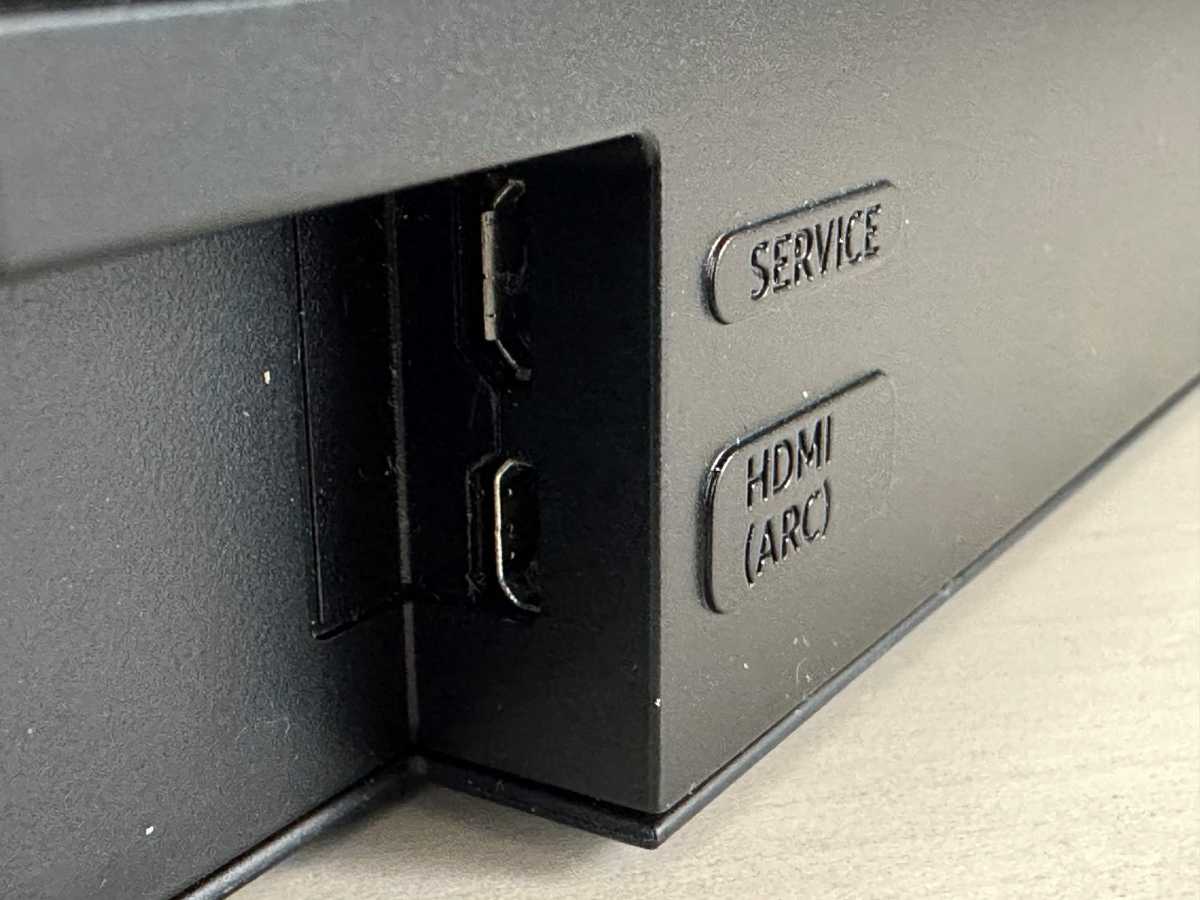
Some tablets also feature Micro-HDMI or Mini-HDMI connections, making the process even simpler. If your device has one of these ports, you can use a Micro-HDMI or Mini-HDMI-to-HDMI cable. Ensure you choose the correct cable size for your device. Examples of Micro-HDMI and Mini-HDMI cables are available on Amazon.
If you have no spare HDMI ports on your TV, you may need to purchase an HDMI switch to add more, freeing up a port for your phone or tablet.
Connect Android to TV wirelessly
If your device doesn’t support HDMI connections, or you prefer to avoid cables, a wireless solution may be more convenient.
Casting content from your phone or tablet to your TV is straightforward, though the various terminologies – such as Miracast, Wireless Display, screen mirroring, and SmartShare – can sometimes be confusing. AirPlay is another term you may come across, but this is exclusive to Apple devices, like the best iPhones.
Rather than worrying about specific terms, simply look for an option in your phone’s or tablet’s ‘Settings’ that mentions casting or screen mirroring. This is usually found under ‘Connected Devices’ or ‘Display Settings.’
Casting typically allows you to stream content from a specific app to your TV, which is ideal for those who prefer a big-screen viewing experience without sharing everything from their phone. Screen mirroring, on the other hand, replicates your entire phone screen, including notifications and apps, so use it only when you’re comfortable with others seeing everything on your screen.
Ben Patterson/Foundry
Most smart TVs support screen mirroring from Android. If you don’t have a smart TV, relatively inexpensive wireless display devices – such as Google TV Streamer or Roku – can enable a wireless connection between your phone or tablet and TV, offering additional features as well.
Ensure the screen mirroring option is enabled in the settings of your chosen device. Then, check that your phone or tablet is connected to the same Wi-Fi network as your TV. Locate the casting option on your phone and select your TV (or Google TV Streamer, Roku, or other wireless HDMI device) to begin mirroring the screen. You may be prompted to enter a code displayed on the TV to confirm the connection.
For the best experience, set your Android phone or tablet to landscape mode, open the content in full-screen mode, and check that the volume isn’t muted. You may also want to enable ‘Do Not Disturb’ to prevent notifications from interrupting playback, particularly if they contain private information.

Foundry
If the app you’re using has a ‘Cast’ icon in the top corner, or if your phone has a ‘Cast’ option in the quick-access settings within Android’s pull-down notification bar, the process is even easier, as you only need to simply tap ‘Cast’ and select your TV or smart device to start mirroring.
Keep in mind that some apps, such as those from Sky, don’t allow you to cast content to a larger screen. The only way to watch this content on a TV is to subscribe to a package that permits TV viewing.
And that’s it! By following these steps, you can easily connect your Android phone or tablet to your TV. You may also be interested in learning how to connect a laptop to a TV.
Author: Artur Tomala, Mobile Writer, Tech Advisor

Artur is a Mobile Writer at Tech Advisor, where he covers a range of smartphone, tablet and smartwatch-related topics. He has been working in the tech industry since 2021, including time spent leading a team focused on mobile news, reviews and product rankings. As an ambassador for the productivity app Notion, he runs training workshops and creates advanced templates to help people stay organised and productive.