
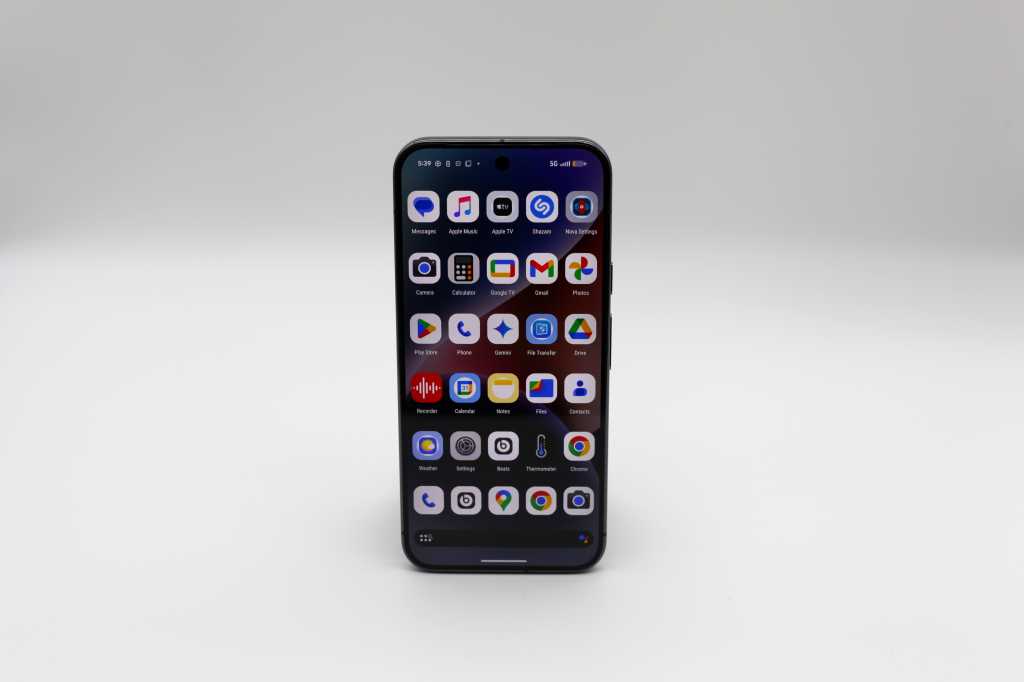
In summary:
- Tech Advisor demonstrates how to transform a Pixel 10 Pro into an iPhone-like experience through customization hacks including launcher apps, gesture navigation, and iOS icon themes.
- These modifications matter for users transitioning from iOS who want familiar functionality while maintaining Android’s flexibility and customization capabilities.
- Key steps include enabling gesture navigation, installing Nova Launcher with iOS icon packs, accessing Apple apps like FaceTime through browsers, and matching iPhone case colors.
Life is all about compromises. If you’re used to an iPhone but switched to an Android device, for work or to save money, there’s still hope. You can make an Android look and function much more like an iPhone.
The steps below are easy to implement but can be a game-changer if you prefer things like “swipe up to go home” or the distinct rounded icons of an iPhone. And none are overly technical. You can even mimic the color of the latest iPhone models with a matching case that’s made for the Pixel 10 Pro.
1. Make sure swipe up to go home is enabled
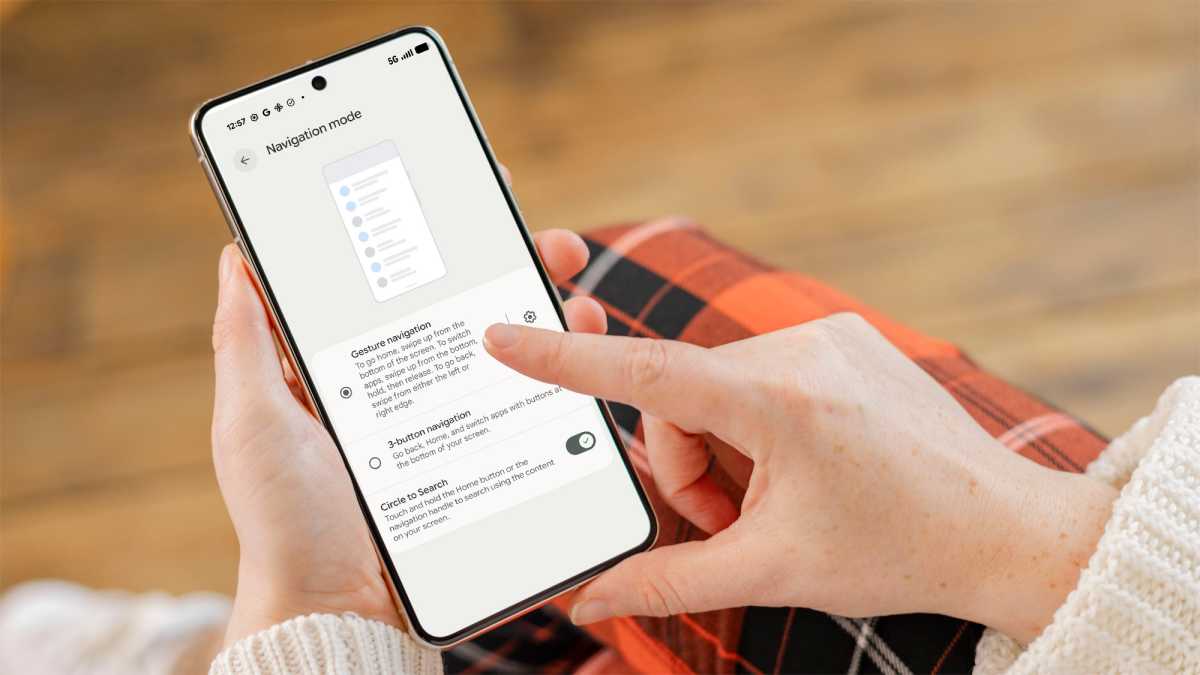
A true iPhone aficionado knows that swiping up to go to the home screen is a common gesture. Not every Android phone has this enabled by default, although many Pixel phones do. Make sure it’s enabled to mirror the iPhone experience.
Dominik Tomaszewski / Foundry
How to enable the feature:
Head to Settings and search for Gesture Navigation. You’ll see an option called 3-Button Navigation but make sure Gesture Navigation is enabled instead. A nice bonus is that this also enables swipe left or right to go back – another iPhone staple.
This also enables swipe left or right to go back – another iPhone staple
2. Install an iOS icon theme pack
One of Android’s differentiators is that it tends to be more customizable. The iPhone is locked into the iOS look and feel, but Google is more accommodating with Android devices such as the Pixel 10 Pro. You can even install a theme pack that makes the icons look more like they belong on an iPhone. The side benefit is that you may feel more productive with familiar icons.
How to get the icons:
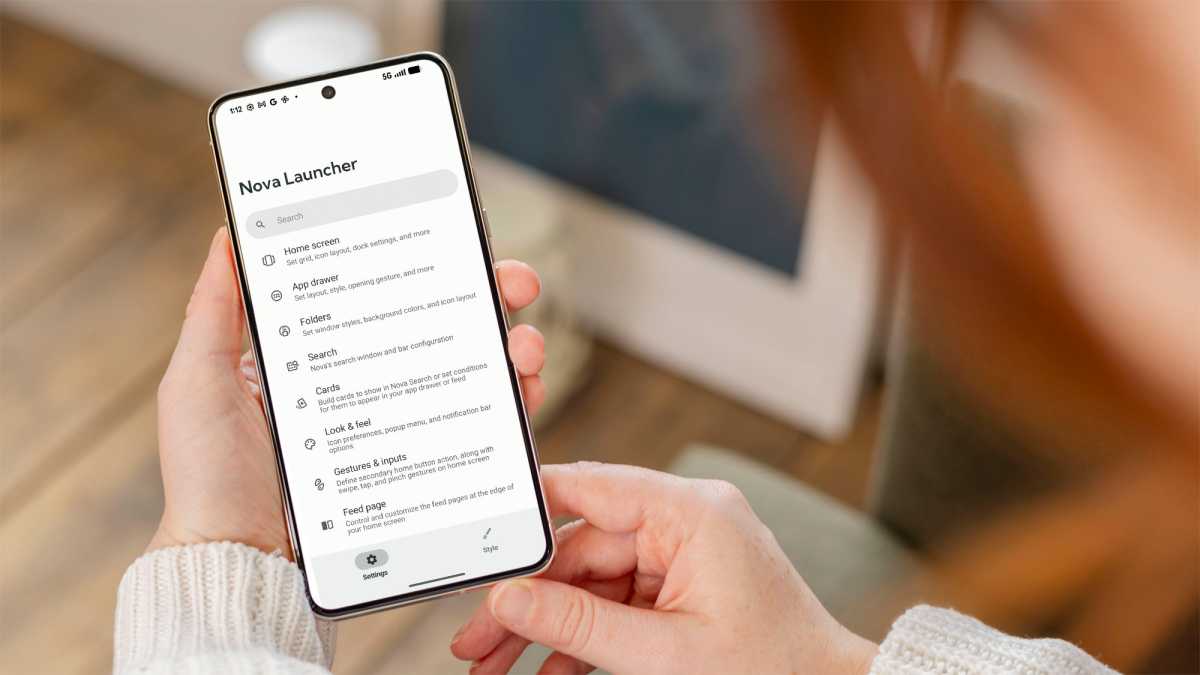
The first step is to find a theme pack with iOS icons. Search the Google Play Store for “iOS theme pack” or “iOS icons” and install it. For example, there’s one called iOS 18 Round that works with the Nova Launcher (which you’ll also need to install). In Nova, select Look & Feel and then choose the iOS 18 icon pack. Be sure to select the Rounded Square look.
3. Use an iOS wallpaper
Speaking of icons, there’s another trick to make your Android seem more like an iPhone. While the actual iOS 26 wallpapers are not available for Android models, there’s an app that lets you install a wallpaper that looks surprisingly similar, using the same shapes and colors.
How to find the wallpaper:
Go to the Play store and search for the iPhone Wallpaper for Android app. Install the app, then choose a wallpaper from the iPhone wallpaper options available.
4. Get a case that matches one of the new iPhone 17 Pro colors
John Brandon / Foundry
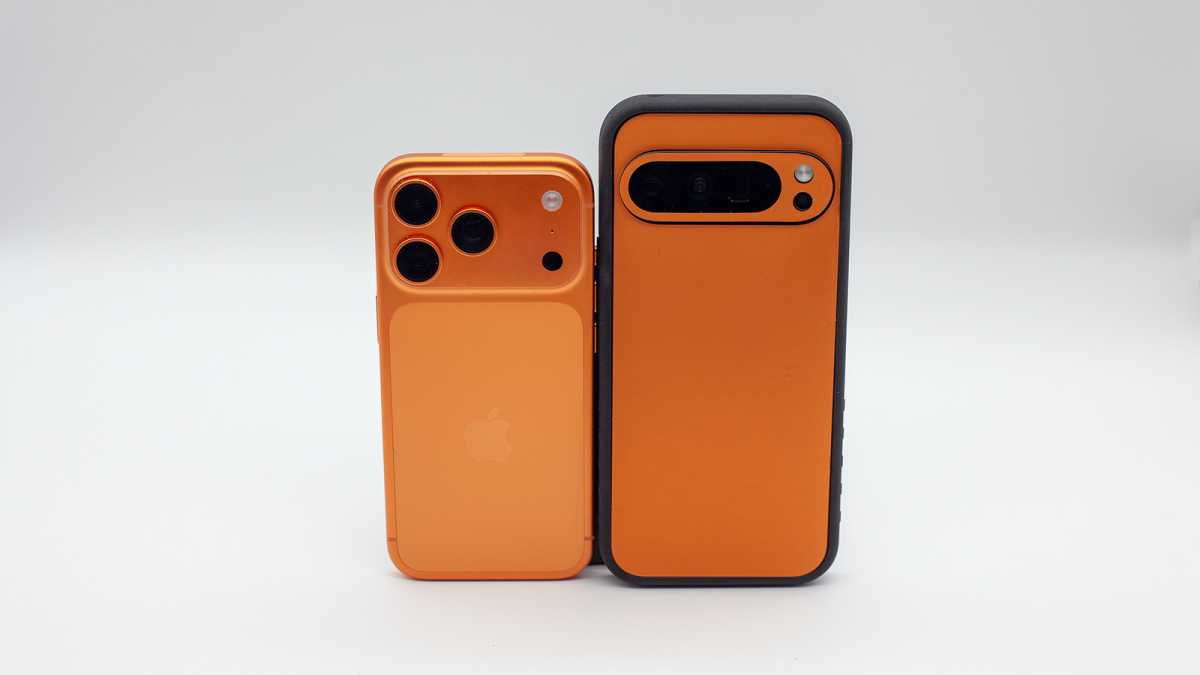
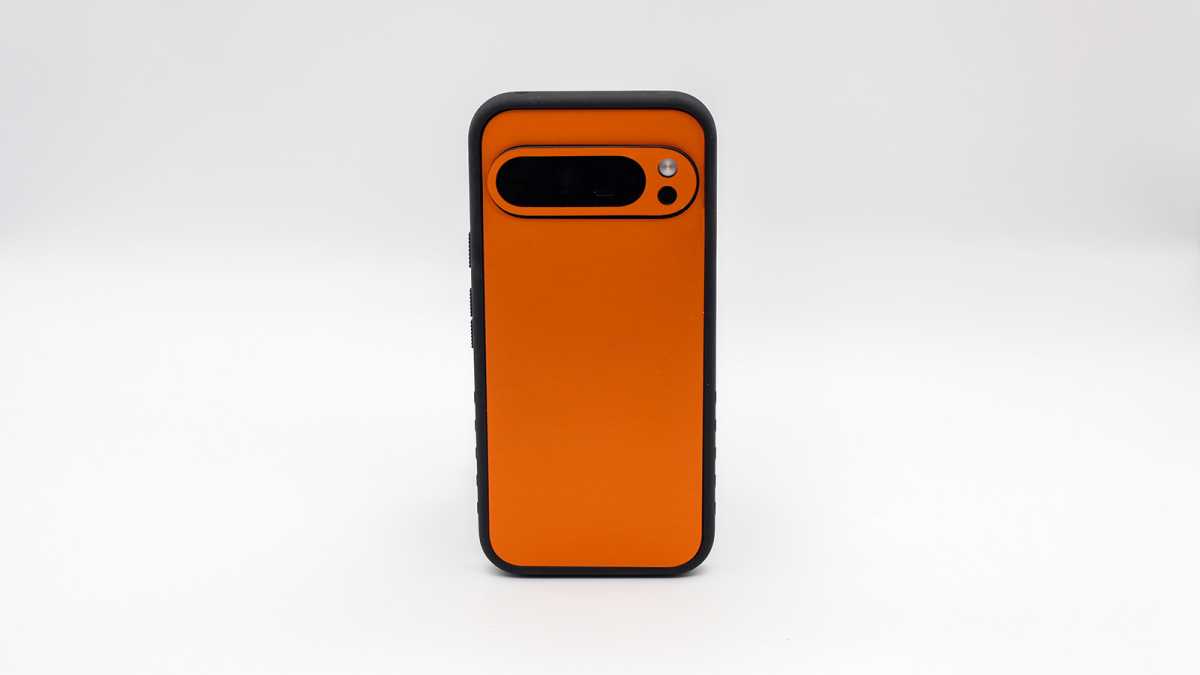
Want to make a more eye-catching statement? Several cases match the new colors of the iPhone 17 Pro, starting with the Skinit Orange Carbon Fiber Specialty Texture Material case that costs $30/£23. The case matches the iPhone’s new Cosmic Orange color.
You can also find cases that match the Deep Blue color, like this Google Pixelsnap case in Obsidian. Those cases are for the Pixel 10 Pro, but there are cases for other Android models as well. I tested out a model from Dbrand that worked well.
To find a case:
The easiest way to find an Android case that matches your specific model is to search on Amazon for “Cosmic Orange”, which is the most distinctive color from the iPhone 17 launch. For example, Dbrand makes one for the Google Pixel 10 Pro XL that I used for testing.
John Brandon / Foundry
5. Use an iOS launcher app
A launcher app is perhaps one of the best ways to make your Android phone look and function more like an iPhone. When you use one, not only do the icons look more like they do on an iPhone, but the launcher removes the app tray. Instead, all of your apps will be housed on your home screens as you install them.
You could make the case that this is less efficient and more confusing than having an app tray, but iPhone users will appreciate the familiarity.
Dominik Tomaszewski / Foundry
How to install a launcher app:
There are a few launcher apps for Android, so your best bet is to search the Google Play store for “launcher apps” and see what comes up. I like Nova Launcher because it makes almost endless tweaks possible, including adjusting the size of the icons, installing an icon pack and even deciding whether app icons are labelled or not.
Be sure to check the option to “Add icons to the home screen”, so that any new apps you install are added to the home screen (or you can just drag apps there).
All of your apps will be housed on your home screens as you install them
6. Install iPhone apps on your Android device
Other than changing the way an Android looks and functions to match an iPhone, another good step to take involves installing Apple apps. Although there are not that many, the few that do exist can be prominently placed on your Home screen.
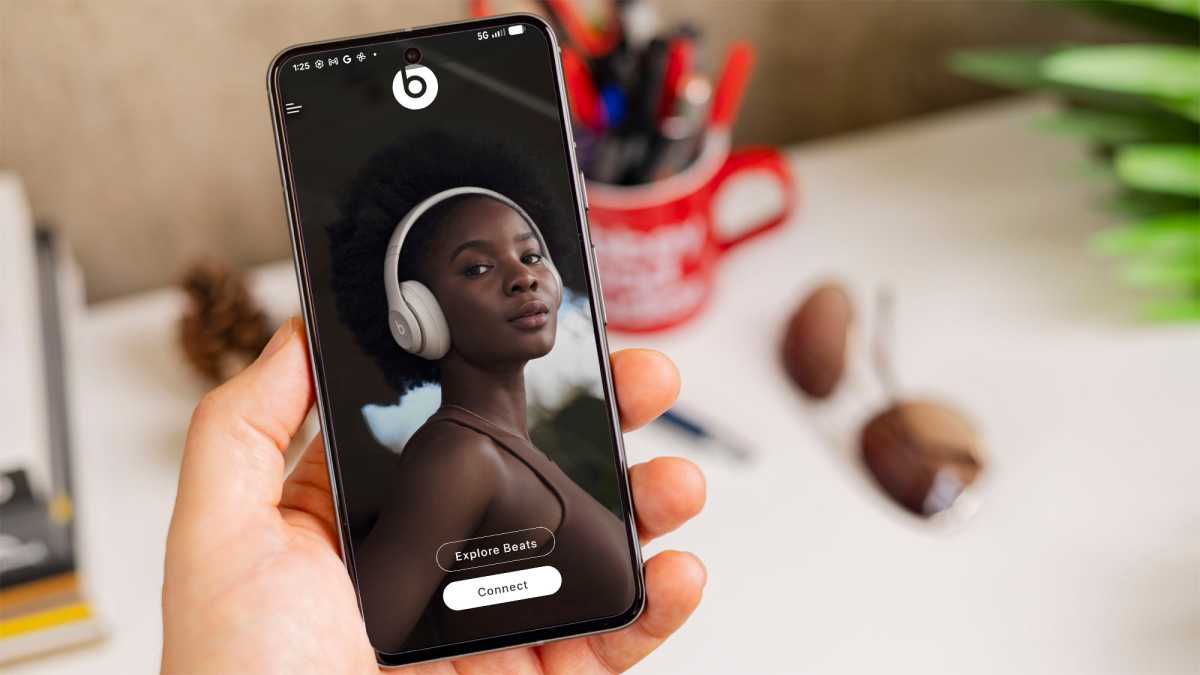
A good place to start is the Apple Music app. Then there’s Beats, which is used for controlling Beats headphones. Apple TV is also a good option, as is the music recognition app Shazam (even though, on an iPhone, it’s now integrated with Siri).
Dominik Tomaszewski / Foundry
How to install the Apple apps:
In the Google Play store, just search for Apple apps and install them. Once installed, drag the icon to the home screen if you want to make a statement about your iPhone bent.
7. Use FaceTime
One last way to make your Android feel more like an iPhone is to use FaceTime, the popular video chat app. Although it’s not available as an app you can download, Android users can still access FaceTime through a browser.
How to use FaceTime on an Android phone:
Since there isn’t a dedicated FaceTime app on Android, you’ll need a meeting link from a FaceTime user. Once you have that link and click it, the video chat session will start on a browser window. On an iPhone, go to FaceTime and select New Call. Click the link button and select Copy, then text that link to the Android user. Now you can FaceTime chat.
Ready to make a switch? See our top recommendations in our round-up of the best phones we’ve tested.
Author: John Brandon, Contributor, Tech Advisor

John Brandon is a well-known journalist who has published over 15,000 articles on social media, technology, leadership, mentoring, and many other topics. Before starting his writing career in 2001, he worked as an Information Design Director at Best Buy Corporation.